
When you're dealing with proxies on a daily basis, it's helpful to have a set of tools on hand to help you test proxies and execute simple tasks. One such tool is cURL. It is an easy-to-use and intuitive command line tool that aims to help you use proxies. With CURL, you can send requests, debug, and set up a proxy from the command line.
In this guide (and sometimes tutorial), we will provide you with in-depth information on how to run cURL and ways to set it up for scraping using your proxies. In order to benefit from the content, you need to have at least basic knowledge about proxies, network operating principles and web scraping basics.
What is CURL?
The name CURL stands for client URL. It is an open source pipeline tool combined with a cross-platform library (libcurl). It is used to transfer data between servers running virtually on any operating system. CURL code can be seen almost anywhere sending or receiving data is done using Internet protocols (cURL supports practically all popular Internet protocols, including but not limited to FTP, HTTP, DICT, IMAP, etc.).
Historically, cURL dates back to the mid-90s, when Swedish developer Daniel Stenberg decided to create a script for currency exchange in a relay chat room. This experimental code led to the creation of the httpget 0.1 tool for data transfer, which was later renamed cURL after the advent of FTP. Since the 2000s, the tool has gained global popularity and is available in almost all types of Internet-connected software.
Why do developers use cURL?
The tool has gained popularity among developers as it can easily handle quite difficult tasks. cURL is scriptable and has a library that allows easy scraping without writing custom parsing code. The main benefits you can find in CURL include:
- Easy to use for testing and debugging;
- Details about the transferred data;
- Large error log;
- Multi-protocol support;
- URLs etc. ability to determine.
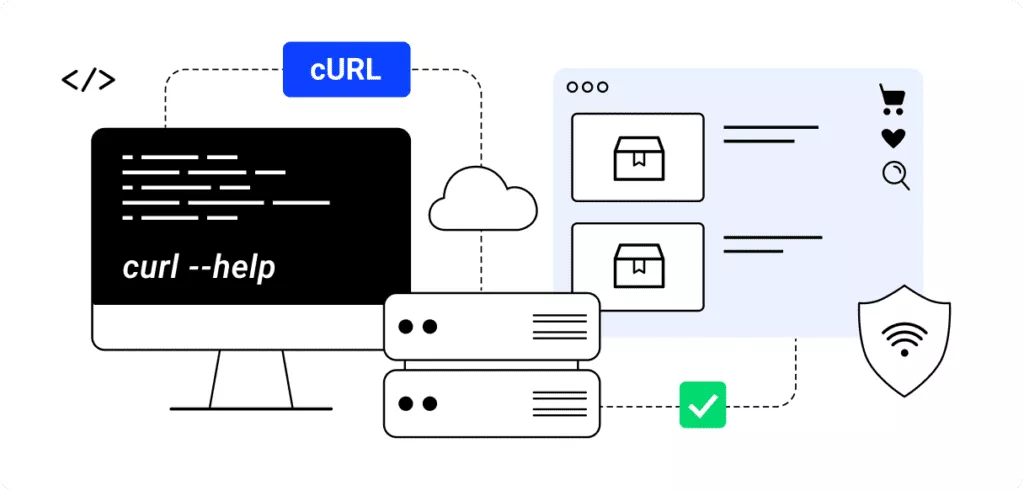
How to use CURL command with proxy?
Install cURL
The best thing about CURL is that it is available on all contemporary operating systems. If you are using a version older than Windows 10, you may need to download cURL for installation. If you are a Linux user and your distribution does not have cURL, you can install it by entering a simple command:
sudo apt install curl
Once cURL is installed, you can run cURL by typing "curl" in the terminal. You should see a prompt to use “curl -help”. The '-help' command will give you a list of commands you can use.
Also, depending on your operating system, curl may require double dashes instead of single dashes for flags or commands. You can verify this by running the -help or –help command. CURL will inform you about using the correct version of the syntax.
Connecting a proxy
Regardless of the proxy service you choose, you will need the following information to set up cURL using a proxy server:
- proxy server address
- Port
- protocol
- username (if cURL with proxy authentication is required)
- password (if cURL with proxy authentication is required)
Using CURL with HTTP/HTTPS proxy
You can run the following test line to get back your current IP:
curl https://httpbin.org/ip
If the command returns an IP other than your machine's IP, your proxy is working properly.
If you still need to set up your proxy, you will need to run an appropriate cURL command line argument.
For this you need to open the terminal and run the command line:
curl --help
You will have a large list of options that will include:
-x, --proxy [protocol://]host[:port]
Note that all commands for CURL are case sensitive. And in this case, the cURL proxy settings will be the same as the proxy setup.
So, you can run one of them to start the proxy. Here's an example of a cURL proxy:
curl -x "http://user:[email protected]:1234" "http://httpbin.org/ip"
or
curl --proxy "http://user:[email protected]:1234" "http://httpbin.org/ip"
What you should also note is that both the proxy URL (along with the authorization information) and the target URL are enclosed in double quotes. This is good practice for handling special characters in URLs.
Additionally, HTTP acts as the default proxy protocol, making the following two commands work for exactly the same cURL proxy configuration:
curl --proxy "http://user:[email protected]:1234" "http://httpbin.org/ip"
curl --proxy "user:[email protected]:1234" "http://httpbin.org/ip"
Using CURL with SOCKS proxy
If you need to use a proxy with the SOCKS protocol, the syntax will remain the same as for HTTP proxies:
curl -x "socks5://user:[email protected]:1234" "http://httpbin.org/ip"
If you need to specify the SOCKS version, you can use socks4://, socks4a://, socks5://, or socks5h://, depending on the version.
Another way to set up a socks5 proxy with CURL would be to use the –socks5 argument instead of -x. If you have a username and password, you can specify them using the –proxy-user switch. Here is an example:
curl --socks5 "127.0.0.1:1234" "http://httpbin.org/ip" --proxy-user user:pwd
Using a .curlrc file
You've already noticed the number of options available with CURL. The best part is that you can configure whatever you want in a config file to save you time. You can specify the file using the -K argument, but cURL will always look in the home directory ~/.curlrc (_curlrc on Windows) as the default location. If it doesn't already exist, you can create it and use it whenever you need cURL.
Ignore or override the proxy for a request
Even if your proxy is set globally or in the .curlrc file, you will be able to override it and set another proxy using this simple method.
If you need to override a cURL request with a proxy, set up a new proxy with the -x or –proxy switch as we explained above:
curl --proxy "http://user:[email protected]:8090" "http://httpbin.org/ip"
If you need to bypass all proxies for a request, you should use the –noproxy switch followed by “ ”. This will tell cURL not to use a proxy for any connections. Example:
curl --noproxy "" "http://httpbin.org/ip"
Follow redirects with cURL
Another useful tip for using cURL is to remember that it does not automatically follow redirects. So, for example, we run this line:
curl http://google.com
, we expect cURL to automatically redirect its request to www.google.com but that won't happen. To make cURL follow redirects we need to use the -L switch (all arguments to cURL are case sensitive).
Therefore, new
curl -L http://google.com
Our line should redirect us from google.com to www.google.com.