Windows 10 operating system users may want to route their internet connections through proxy servers. Proxy use may be preferred for reasons such as security, privacy and access policies. In this guide, we will explain step by step how to install and configure a proxy in Windows 10. You can easily configure your proxy settings by following the steps below.
Please note that before configuring your proxy settings, you need to obtain information such as the IP address and port of the proxy server you will use. You can obtain this information from your network administrator or proxy provider. Now, let's move on to setting up proxy in Windows 10.
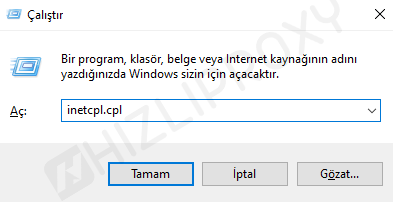
- First, press "Win" and "R" keys. Type "inetcpl.cpl" in the "Run" window that opens and click the "OK" button.
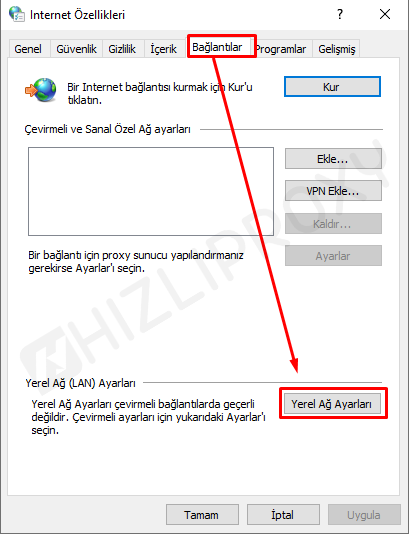
- In the "Internet Properties" window, switch to the "Connections" tab and click the "Local Network Settings" button.
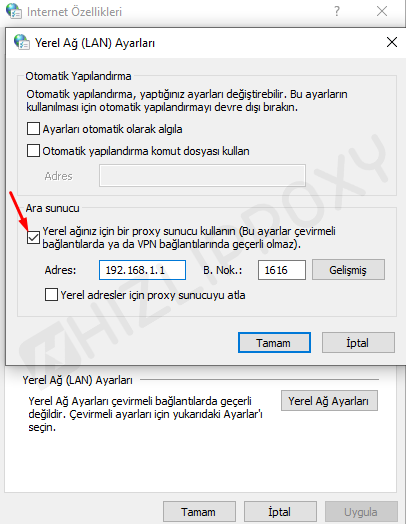
- In the "Local Network (LAN) Settings" window that opens, activate the "Proxy server" check box. Then write the Proxy IP address in the address section, write the PORT information given to you in the B.NOK: section and click the "OK" button to save the settings.
Congratulations, you have completed the proxy setup. You can now establish connections with the proxy you entered into the system.
Note: When setting up proxy settings in Windows 10, you need to provide information such as the IP address and port of the proxy server you will use. Additionally, it is important to configure the correct settings regarding the reason for using the proxy.
Disabling Proxies in Windows 10
- First, press "Win" and "R" keys. Type "inetcpl.cpl" in the "Run" window that opens and click the "OK" button.
- In the "Internet Properties" window, switch to the "Connections" tab and click the "LAN Settings" button.
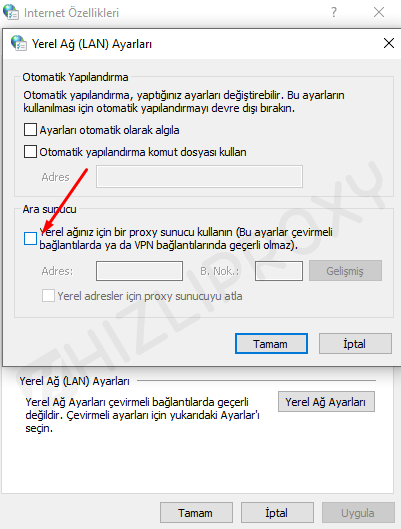
- In the "Local Area Network (LAN) Settings" window, clear the "Use a proxy server for LAN" and "Bypass proxy server for local addresses" checkboxes. Finally, save the changes by clicking the "OK" button.
Note: Disabling proxy settings in Windows 10 can be used in cases where the use of proxy is not required. When you want to enable proxies again, you can easily revert the settings by following these steps.